


Why It’s Important
For the last two years, Microsoft has aggressively integrated AI features into Windows 11, Microsoft 365, Edge, and other products through Copilot. Some users welcomed the convenience. Others viewed it as unnecessary software they never asked for.
That frustration has been especially strong in enterprise environments where IT departments must balance productivity, privacy, compliance, and system stability. Until recently, administrators could mostly hide or disable Copilot. Fully removing it across managed devices was difficult.
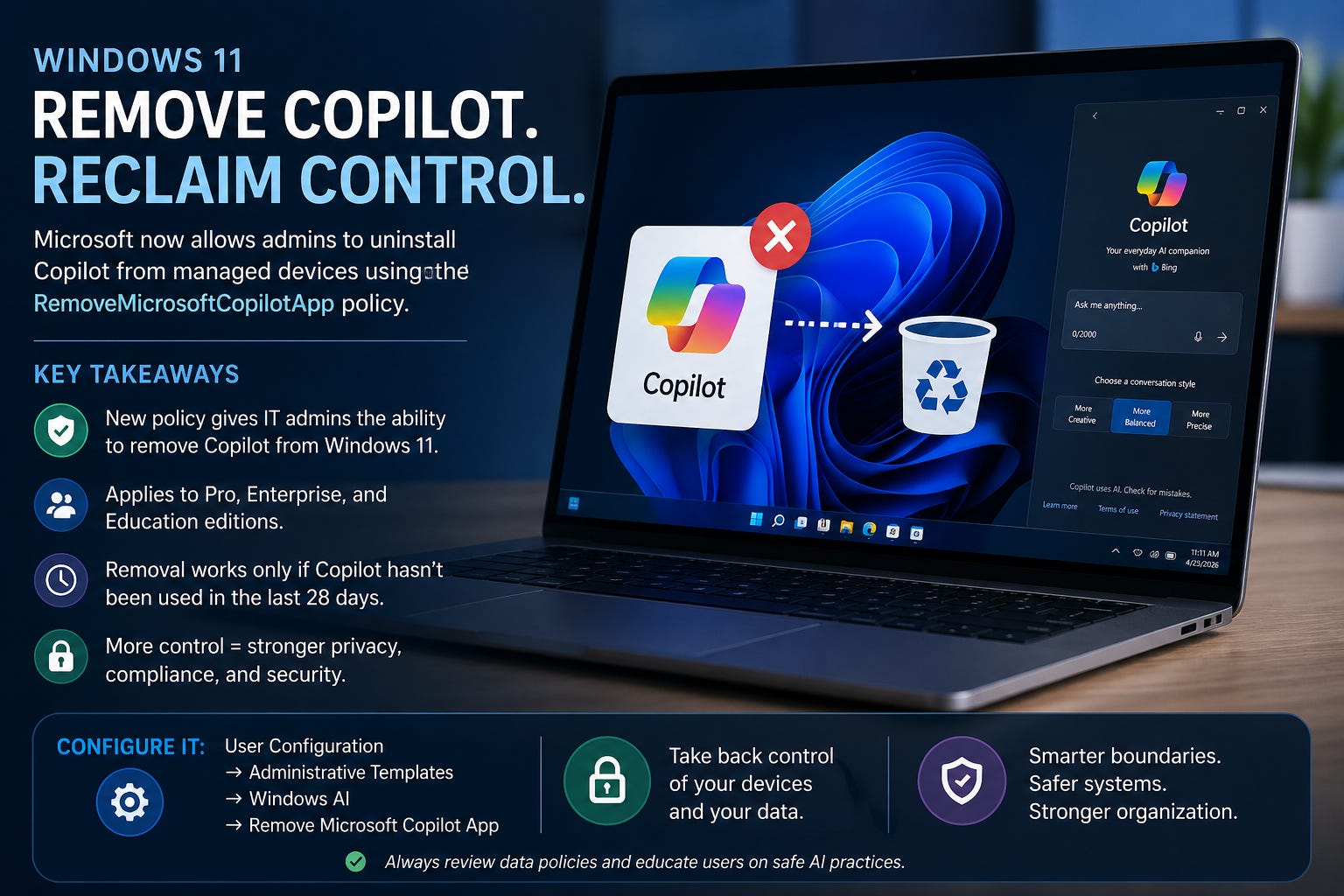
Now Microsoft has introduced a new policy called RemoveMicrosoftCopilotApp, allowing organizations to uninstall Copilot from managed Windows 11 systems under certain conditions.
This matters because it signals a subtle shift in Microsoft’s AI strategy. Instead of forcing AI features into every workflow, the company is beginning to acknowledge that businesses want more control.
For privacy focused users, this is also part of a larger conversation:
Who decides when AI belongs on your device?
What It Is / How It Works
The new policy became broadly available following the April 2026 Windows security updates and works through:
Group Policy
Microsoft Intune
System Center Configuration Manager (SCCM)
The setting applies to Windows 11 Pro, Enterprise, and Education editions running newer builds like Windows 11 25H2.
Microsoft describes the feature as a “non-disruptive” way to remove Copilot from organizational devices.
However, there are important restrictions.
The Copilot app can only be removed if:
Both Microsoft Copilot and Microsoft 365 Copilot are installed.
The user did not manually install Copilot.
Copilot has not been launched in the previous 28 days.
That final condition has sparked criticism because Copilot often auto starts or can be triggered accidentally through keyboard shortcuts or integrations. Some users on Reddit described the app as “coming back repeatedly” after uninstall attempts.
This creates a strange situation where organizations may want to remove AI tools, but Microsoft still controls the conditions under which removal is allowed.
Think of it like trying to unsubscribe from a newsletter that quietly re-enables itself whenever you open your inbox.
Here’s What You Need to Know About the Bigger AI Push
Microsoft’s AI rollout has not happened in isolation.
Over the past year, the company has:
Added Copilot integrations into Office apps.
Expanded AI powered search and recommendations.
Introduced AI assistance throughout Windows.
Experimented with automatic Copilot installations.
At the same time, organizations have become more cautious about:
Data handling.
Compliance requirements.
AI-generated misinformation.
Employees sharing sensitive information with cloud AI tools.
A recent academic study examining discussions around GitHub Copilot identified recurring concerns involving:
Potential data leakage,
insecure code suggestions,
prompt injection attacks,
and licensing confusion.
Those concerns are not limited to developers. Many businesses now worry about where employee prompts are stored, how AI systems process confidential information, and whether AI generated outputs can be trusted.
That is why some companies are beginning to create internal AI governance policies rather than allowing unrestricted AI access. Reddit discussions from IT professionals show many organizations limiting approved AI tools or restricting them entirely.
How to Mitigate Privacy and Security Risks
Removing Copilot is only one piece of the puzzle.
If your organization is reviewing AI usage in Windows environments, here are several practical steps worth considering:
Review AI Data Policies
Understand what information employees are allowed to submit into AI tools. Sensitive customer data, financial records, and internal documents should have clear handling rules.
Frameworks like the National Institute of Standards and Technology AI Risk Management Framework can help organizations create structured AI governance policies.
Disable Unnecessary Integrations
Even if Copilot remains installed, many AI features inside Microsoft 365 and Edge can be disabled individually.
Reducing unused AI integrations lowers:
accidental data exposure,
unnecessary cloud communication,
and user confusion.
Monitor AI Permissions
AI assistants often request broad access to:
emails,
files,
calendars,
and browser activity.
Review permission scopes carefully before enabling organization wide deployment.
Train Employees
Many security problems involving AI happen because users assume AI tools are private when they are not.
A short internal training session explaining:
what AI systems store,
what should never be pasted into prompts,
and how outputs should be verified,
can reduce risk significantly.
Want to support my work? Consider buying me a coffee ☕
How to Configure/Use
If you manage Windows 11 enterprise devices, the new removal policy can be configured through Group Policy.
Navigate to:
User Configuration → Administrative Templates → Windows AI → Remove Microsoft Copilot App
Enable the setting to allow Windows to remove Copilot when the policy conditions are met.
For home users, Copilot can usually be removed through:
Settings → Apps → Installed Apps
You can also hide the Copilot button through taskbar personalization settings.
Advanced users on Windows Pro editions can still use:
Group Policy,
Registry edits,
or AppLocker rules
to block or restrict Copilot behavior more aggressively.
Feature Highlight
Recommended Tool: Portmaster (by Safing)
Portmaster is a powerful, privacy first firewall application that offers granular control over every connection your computer makes. Developed by Safing, a security focused firm based in Austria, it operates under strict EU privacy regulations, providing a level of corporate accountability and transparency that independent, solo developer projects often lack.
Unlike standard firewalls, Portmaster doesn’t just block ports; it provides a comprehensive view of all network activity, allowing users to:
Monitor Background Traffic: Easily identify and cut off hidden telemetry or background data streams from AI-integrated applications.
Automated Privacy: Includes built-in filter lists to automatically block trackers, ads, and known malware sites system-wide.
Secure DNS: Automatically encrypts your DNS queries to prevent ISPs or third parties from snooping on your browsing habits.
For those who prioritize a “Zero Trust” approach to their personal workstation, Portmaster offers a robust, professional grade solution to regain sovereignty over your digital footprint.
Closing encouragement
AI assistants are becoming part of everyday computing whether users ask for them or not. That makes digital awareness more important than ever.
The goal should not be fear or blind adoption. It should be informed control.
Microsoft allowing Copilot removal is a small but meaningful step toward giving users and organizations more choice over how AI fits into their systems.
The companies that handle AI responsibly in the coming years will likely be the ones that balance convenience with transparency, security, and user trust.
What do you think: should AI assistants be built into operating systems by default, or should users choose whether they want them installed?